How to Remove the Background from a Product Photo — Free, Local AI, 4 Steps
Short answer: drop the photo into a browser tool that runs an image-segmentation neural network on your own device, export the transparent cutout, then compose it on a clean studio background. With Tatovio Studio the whole chain — cutout, scene, shadow, export — takes about two minutes per product, is free without a watermark, and your photos never leave your computer. Here is the exact workflow, plus the fixes for the subjects AI finds hardest.
Follow along: open tatovio.com in any modern browser on desktop or mobile. No account, no installation — the AI model is downloaded and cached after your first cutout.
Why product photo backgrounds decide whether listings sell
The main image of a marketplace listing has one job: earn the click. Amazon requires a pure white background (#FFFFFF) for the primary photo, and busy or cluttered backgrounds are among the most common reasons sellers reshoot or reject supplier photos. Even where rules are looser — Shopify stores, social shops, catalogues — a clean, consistent background makes the product easier to judge and the catalogue look professionally produced. Background removal is the step that turns a random snapshot into a usable listing asset, and doing it with AI costs seconds instead of a Photoshop session per SKU.
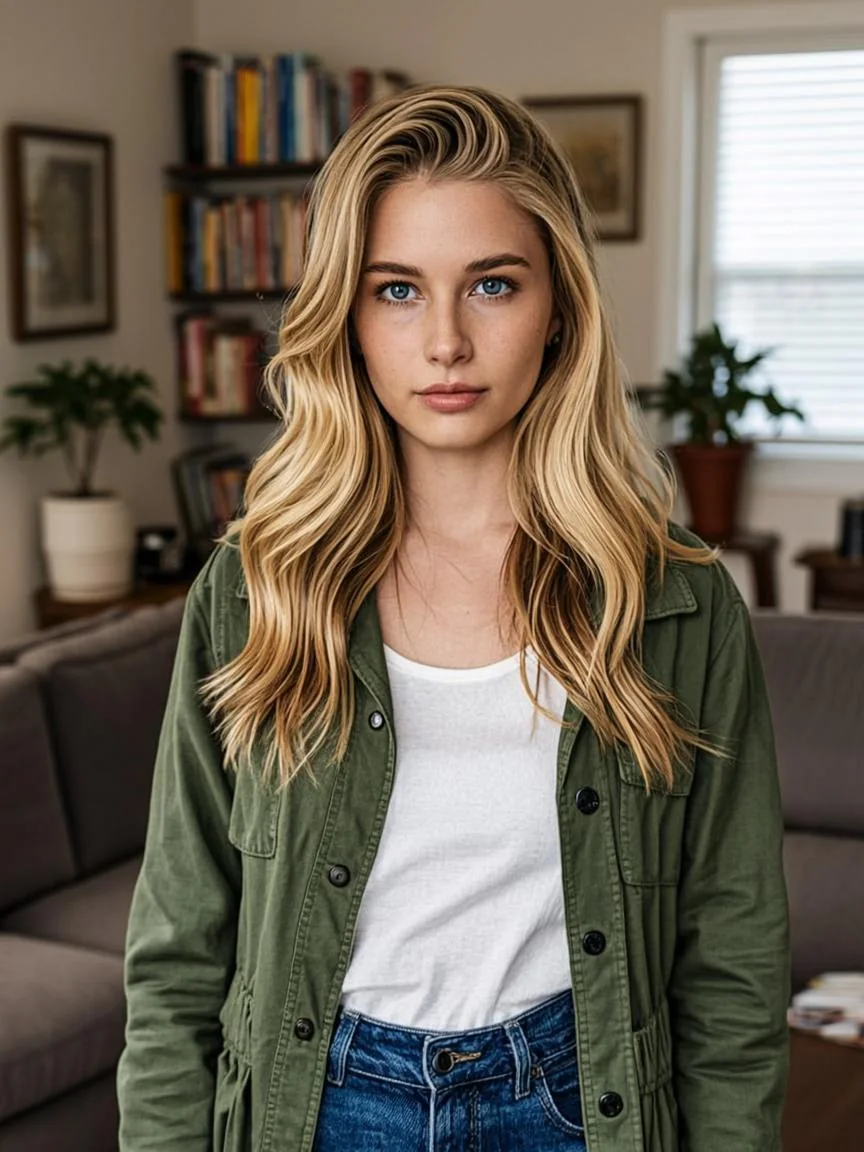
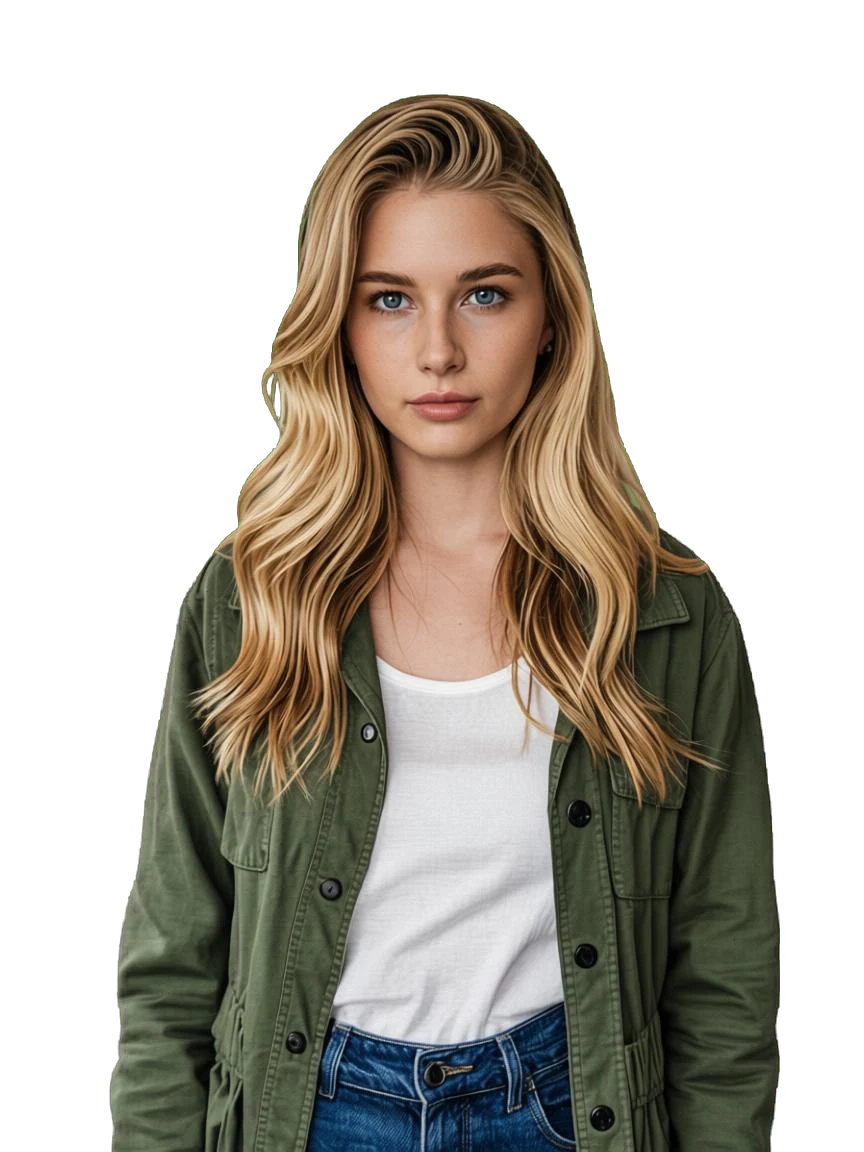
Step 1 — Drop the photo into the studio
Open Tatovio and drag your image onto the canvas, or pick a file from the upload zone. JPG, PNG, WebP and AVIF are all accepted, and there is no size gate below the 4K export ceiling. The first cutout triggers a one-time download of the AI model (a few dozen megabytes); it is cached, so every later session starts instantly and even works offline once the app is installed as a PWA.
Step 2 — Let the local AI cut out the product
Tatovio's default engine, BRIA RMBG-1.4 (via Transformers.js v3 on ONNX Runtime Web), segments the subject and returns a true transparent-alpha cutout at full resolution — not a white box pretending to be transparency. For subjects with fine edges, switch the engine selector to Studio Matting (IMG.LY ISNet), which handles hair, fur, glass edges and semi-transparent materials better. Both engines run locally in WebAssembly: the photo is processed on your device and never uploaded, which matters for unreleased products, supplier shots and licensed assets.
Step 3 — Choose the new background
With the background gone you have four options, all in the same editor:
- Keep it transparent — the safest master file; every later composition starts here.
- Marketplace Pure White — the one-tap #FFFFFF preset for Amazon-style main images.
- One of 8 procedural studio scenes — Marble Loft, Walnut Craft, Stone Podium, Sand Arch, Blush Gallery, Slate Studio, Sage Botanical, Noir Spotlight. Tatovio auto-grounds the product on the scene's floor line, so nothing floats.
- Your own photo or colour — custom backdrops for lifestyle shots.
Step 4 — Add grounding shadow or reflection, then export
A composited product only looks real when it touches its surface. Enable the contact shadow (adjust intensity, softness, spread, falloff) or the mirror reflection (intensity, length, gap) — both are computed from the product's actual silhouette, not a generic ellipse. Then export with a preset that matches the destination, using the live file-size estimate to stay under marketplace limits:
| Preset | Size | Typical use |
|---|---|---|
| Amazon / Store 1:1 | 1080×1080 | Amazon, eBay, Shopify main images |
| YouTube Thumbnail 16:9 | 1920×1080 | Video covers with Text Behind Subject |
| Reels / TikTok 9:16 | 1080×1920 | Short-form product videos |
| Original | Native, up to 4K | Website galleries, print, marketplaces that allow large images |
PNG keeps transparency, WebP compresses harder, JPG suits white-background exports. There is no watermark and no daily export limit, at any tier, because there is no paid tier.
Processing a whole catalogue: bulk background removal
Repeating the workflow per SKU is fine for ten products and painful for a hundred. Switch to Bulk Cutout, drop 50+ images, and apply one global scene + shadow + reflection setting (or Pure White) to everything in a single RAM-safe queue. Results export as one ZIP with consistent filenames, ready to upload straight to Amazon Seller Central, Shopify, Etsy or WooCommerce. Because the queue is sequential and local, your browser tab — not a server you pay per image — does the work.
Common mistakes that make AI cutouts look fake
- Floating product. The cutout is pasted with no shadow; always add a contact shadow when the background implies a surface.
- Off-white background. A "white" that is actually #F5F5F5 fails Amazon's pure-white check; use the Pure White preset, which paints real #FFFFFF pixels.
- Halo on hair or glass. Switch engines (RMBG-1.4 → ISNet) before touching the mask manually; the right model usually beats manual cleanup.
- Upscaling a low-res original. AI cannot invent detail that is not there; reshoot blurry source photos instead of exporting a 4K blur.
Questions sellers ask (direct answers)
What is the best free tool to remove backgrounds from product photos?
Look for four things: no watermark, full-resolution export, batch support and no forced uploads. Tatovio offers all four free — the RMBG-1.4 network runs in your browser, exports reach 4K with transparency, and bulk mode handles 50+ images per ZIP.
Is a browser-based background remover as good as desktop software?
For standard product cutouts, yes — the same class of segmentation networks runs in both. Desktop still wins for deep manual retouching; browser tools win on price, setup speed and privacy because photos never leave the device.
Are my product photos uploaded to a server?
Not with the default engines — RMBG-1.4 and ISNet both execute locally via WebAssembly. The optional cloud engine is strictly opt-in, with automatic local fallback when it is busy.
Can I remove backgrounds from many product photos at once?
Yes — Bulk Cutout processes 50+ images in one queue and exports a single ZIP with a consistent global look, filenames matching your originals.
Try it on your own products now: Open the Free Studio Next: Amazon white-background rules
Keep reading
White Background Product Photos: Marketplace Requirements
Hit a true #FFFFFF main image for Amazon, eBay and Etsy — free.
AI ExplainedHow AI Background Removal Works
Segmentation, matting and why local in-browser AI matters.
Buying GuideChoose a Free Background Remover in 2026
7 criteria that separate genuinely free tools from trials.